How to fix “Only 20 items can be opened at one time” in Power BI & Fabric
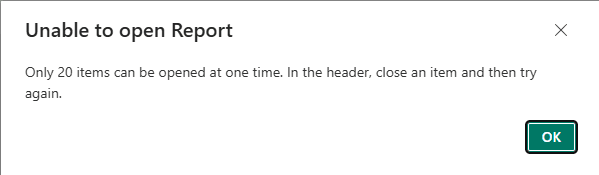
Power BI and Microsoft Fabric keep every report, semantic model, and workspace item you open pinned inside an internal session bar, even after you navigate away. Once 20 items accumulate, Power BI blocks any new report until you clear them.
1. Why Power BI says “Only 20 items can be opened at one time”
You can have only a single browser tab open to app.powerbi.comand still trigger this popup. Here is the difference between your browser tabs and Power BI's internal session bar:
Chrome / Edge Browser Tabs
Unrelated to ErrorClosing browser tabs in Chrome or Edge does not close open items inside your Power BI session. Even if you use the browser Back button or open a new link in the same tab, Power BI keeps the previous report active in memory.
Fabric's Internal Horizontal Item Bar
Capped at 20 ItemsEvery time you open a report, dashboard, semantic model, exploration, or notebook, Power BI pins it to the horizontal navigation bar across the top of the workspace UI. Once 20 items accumulate across your session, Power BI refuses to open a 21st item.
2. Three ways to clear the error right now in Power BI
If you or a teammate is currently blocked by the “Unable to open Report” modal, use these three steps:
Close tabs in the top Power BI header
Click OKon the error popup, then look at the horizontal tab strip near the top of the Power BI interface (just below your browser's address bar). Hover over open report tabs and click the X button.
Check the “...” overflow menu on the right
Because a screen cannot fit 20 full-width report titles at once, most of your open items are tucked inside a dropdown overflow menu at the far right of the horizontal tab bar. Open that menu to close older items.
Clear stuck “ghost” session items
Occasionally, browser storage gets out of sync with the visible header and reports 20 open items even when the bar looks empty. Sign out of Power BI and sign back in, or clear browser site data for app.powerbi.com.
3. Why everyday report viewers hit this limit repeatedly
Microsoft designed the 20-item tab bar for data engineers simultaneously editing a notebook, a lakehouse, and a semantic model.
Business report consumers work differently. An operations director or finance lead checking metrics across departments treats Power BI like a normal website: they click a report link, read the numbers, and click the next link. Over a few days, since Power BI persists open items across sessions, they quietly hit 20 open reports without ever noticing the top tab bar.
4. How LumioBI prevents the 20-item limit automatically
Because LumioBI adds a curated sidebar directly inside app.powerbi.com (and often hides native Power BI chrome using UI controls), we built automatic Fabric tab garbage collection directly into the extension:
Auto-closes inactive tabs
Inspects Power BI's horizontal navigation bar before switching reports and closes inactive background items.
Protects unsaved edits
Checks each tab's state and skips any item with unsaved changes (dirty state) so authors never lose work.
Works with hidden headers
Cleans up tabs in the background even when native Power BI headers are hidden by your portal theme.
Unlimited daily browsing
Executives and teams can move across dozens of reports all day without ever seeing the 20-item error.
5. Common questions
Does “Only 20 items can be opened at one time” mean I have too many browser tabs open?
No. It refers strictly to the internal item tabs inside the Power BI and Microsoft Fabric web application header. Closing other Chrome or Edge tabs will not clear the error.
Did this limit used to say 10 items instead of 20?
Yes. Earlier versions of the Microsoft Fabric multitasking experience capped open items at 10 before Microsoft raised the limit to 20 items. The underlying session behavior remains the same.
Will LumioBI close a report or artifact if I have unsaved edits?
No. Before clicking close on any background tab, LumioBI checks the tab's state and only closes inactive items where data-dirty="false". Any item with unsaved changes is protected and skipped.
Can administrators configure or disable automatic tab cleanup in LumioBI?
Yes. Automatic Fabric tab cleanup is enabled by default for all LumioBI portals so viewers never hit the 20-item wall, and portal administrators can customize its behavior in advanced experience settings.
Eliminate Power BI navigation friction
Give your team a cleaner way to browse Power BI.
LumioBI adds a branded, searchable sidebar menu to native Power BI and automatically cleans up inactive Fabric session tabs so your users never hit the 20-item error.
Written by LumioBI, the product described in this guide. Microsoft interfaces and session limits can change; refer to Microsoft's documentation for current Fabric specifications. Compare approaches in Org Apps, embedded analytics, and LumioBI.