
How to build a Power BI report catalog people can trust
Finding a report named “Revenue” is easy. Knowing whether it is the current finance view, an old sales experiment, or a regional copy is harder. Pair every report link with a clear business question, owner, and review routine.
Revenue_Dashboard_v7_FINAL_copy.pbix
No owner listed · Unknown refresh schedule · Confused with Sales numbers
Monthly Revenue (Finance)
Compare booked revenue with monthly plan by business unit.
1. Define what your report catalog is for
Begin with a manageable collection, such as the reports used in a monthly operations review. Include reports people should use today, and keep drafts or retired items in your administrator inventory.
Business Report Catalog (This Guide)
For ViewersA maintained directory built for business decision-makers. It answers three immediate questions:
- What business question does this report help me answer?
- Is it appropriate for my department and task?
- How do I open it, and who supports it if I have questions?
Technical Data Catalog
For Data TeamsDocuments underlying semantic models, DAX measures, SQL lineage, and table schemas. Link to that technical documentation when helpful, but keep the business report directory focused on choosing and opening reports.
2. What to record in your catalog (8 core fields)
The downloadable CSV contains these column headings. It is a planning spreadsheet for your team, not a live LumioBI import file.
Report name & business question
Explain the decision or task in plain language your business audience recognizes.
Audience & business area
Help readers decide immediately whether the report applies to their department or role.
Approved viewing URL & workspace
Keep the user-facing link and the technical maintenance workspace location together.
Accountable owner & support contact
Identify who resolves metric questions and approves changes to the report.
Access request process
Explain exactly where a viewer can request permission instead of hitting a dead end.
Refresh expectation & limitations
Describe when numbers update and what the report should not be used for.
Lifecycle status & endorsement
Distinguish draft, active, and retired entries; record only verified Power BI endorsement.
Review dates & replacement URL
Make maintenance visible and give retired reports a clear successor link.
3. Distinguish similar reports with a 1-sentence purpose
When two reports both contain revenue numbers, a clear purpose and usage boundary keep employees from pulling the wrong figure into a meeting. Here are two illustrative entries:
Monthly revenue (Finance)
“Compare booked revenue with the monthly plan by business unit.”
- Audience
- Finance managers & budget owners
- Owner & Support
- Finance reporting lead
- Access Path
- Request Finance audience via Service Desk
- Use With Care
- Not for intraday sales tracking
Sales pipeline & next actions
“Review open opportunities, stage velocity, and next actions with account owners.”
- Audience
- Account executives & sales leaders
- Owner & Support
- RevOps analytics team
- Access Path
- Included in Sales Org security group
- Use With Care
- Unbooked pipeline; do not use for GAAP close
4. Verify endorsement & viewer access separately
Power BI supports Promotion and Certification for reports. Record a certification badge only when it truly exists in Power BI (see Microsoft's endorsement guidance).
- 1. Test with a real viewer account: Open each link using a representative viewer account. If access is granted via an app, use the app-context URL.
- 2. Confirm permission boundaries: Verify that users without permission still cannot open restricted reports via direct URL.
- 3. Document the access-request route: Never leave viewers at a Microsoft permission error with no contact path.
5. Turn your CSV inventory into a live LumioBI sidebar
A spreadsheet plans the catalog; LumioBI puts that curated structure directly beside native Power BI across all your workspaces:
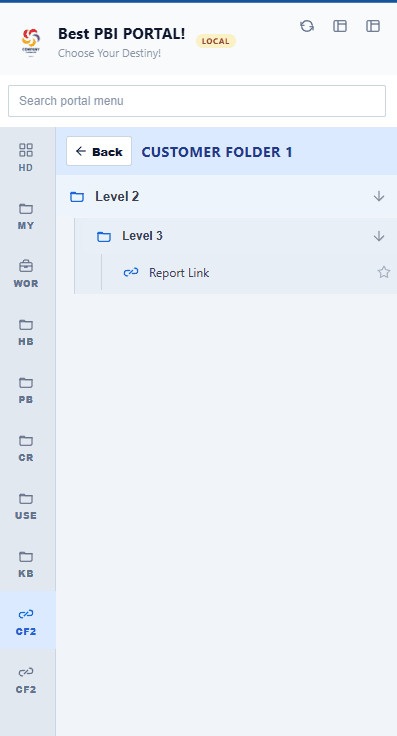
- 1. Create folders: Add Finance, Sales, and Operations in the Navigation editor.
- 2. Add reports & docs: Place approved report links alongside metric dictionary or support links.
- 3. Target by group: Assign group visibility and let users search or star Favorites.
6. Give the catalog a lightweight maintenance routine
When a report changes
Update its 1-sentence purpose, usage limitations, viewing link, and support contact.
When an owner leaves
Assign a new accountable report owner before the entry becomes an unmaintained orphan.
When a report is replaced
Record the successor URL, notify the audience, and update the LumioBI menu link.
When a review is overdue
Flag the entry for follow-up so viewers know whether the catalog metadata is current.
7. Common questions
Can the catalog include reports from different workspaces?
Yes. A maintained directory can point to reports across separate workspaces. Test the viewing links and each audience's access; inclusion in the directory does not grant permission.
Should every report be listed?
Keep a full administrative inventory if governance requires one, but keep the business-user catalog focused on active, supported reports and separate drafts or retired items.
Is the CSV template a live report inventory?
No. It is a blank CSV for planning and maintenance. It does not connect to Power BI, discover reports automatically, monitor refreshes, or import into LumioBI.
From spreadsheet to live portal
Build the inventory. Make the reports easier to find.
Start with the free CSV planner, then see how LumioBI turns your curated collection into a persistent sidebar menu alongside Power BI.
Written by LumioBI, the product described in this guide. Examples are illustrative. Adapt the suggested review process to your organization and verify product behavior in your environment.