
Follow one organized menu
Find reports and resources in the folders your administrator creates. Keep that menu alongside Power BI as you move between reports and workspaces.
LumioBI for Chrome
Bring branded navigation, portal search, and favorites into the Power BI experience your team already uses.
Requires a configured LumioBI portal, approved portal access, and the applicable Power BI permissions and licensing. See LumioBI plans.
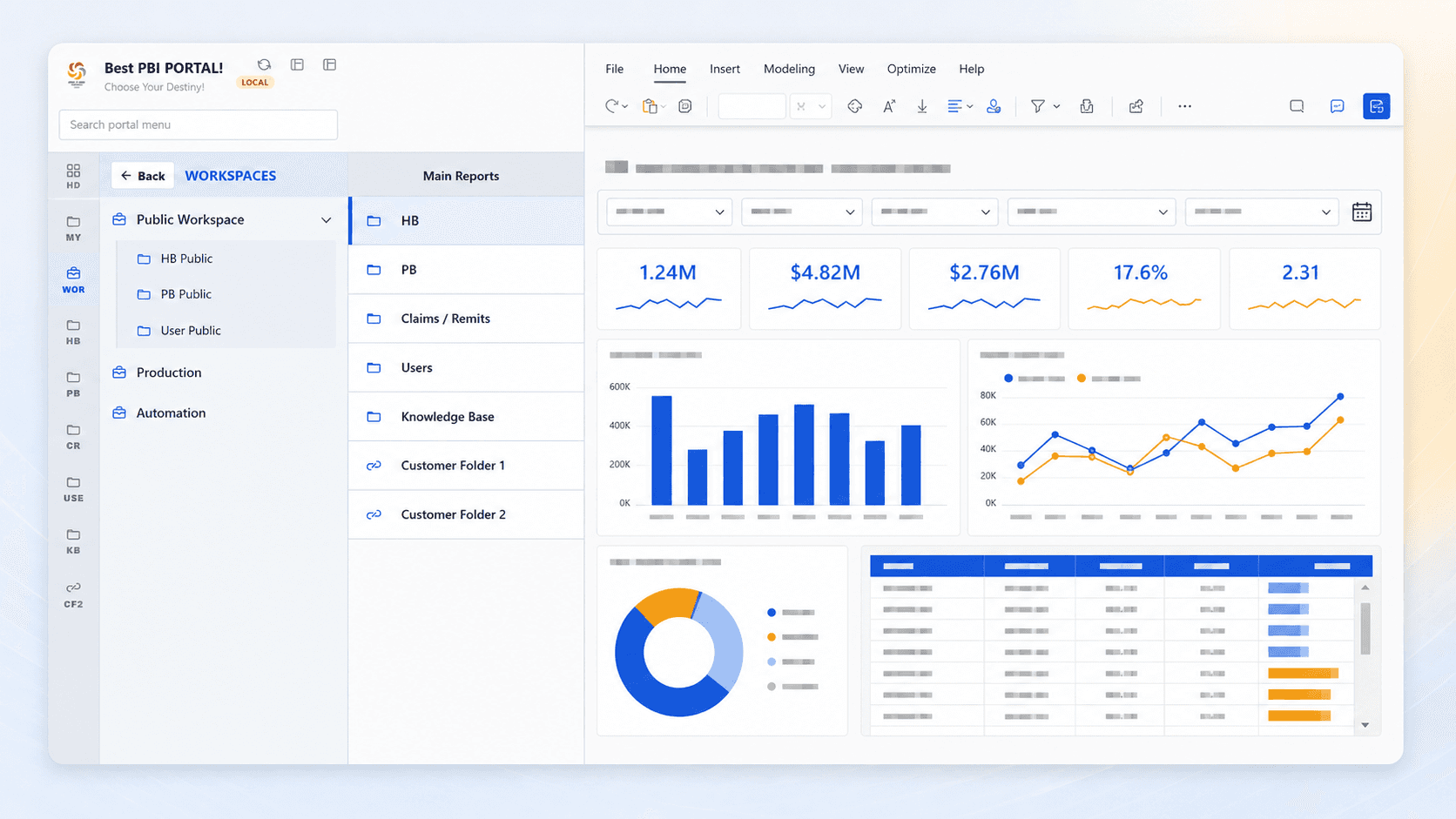
For employees who switch between a weekly sales view, a finance report, and an operations dashboard, LumioBI keeps the route to each destination close to the report itself.
Find reports and resources in the folders your administrator creates. Keep that menu alongside Power BI as you move between reports and workspaces.
Look up destinations in your portal menu when you know what you need. Spend less time remembering which folder contains the report.
Star the links you return to regularly. Your Favorites folder gives your own frequently used destinations a place in the shared reporting experience.
For report viewers
Ask your administrator which LumioBI portal to use and which work email is approved. If your organization has not set up a portal yet, start with the administrator setup below.
Open the listing for LumioBI – Your Power BI Portal, choose Add to Chrome, and review Chrome's permissions prompt. If your organization manages extensions, ask IT to approve or deploy it.
Sign in at app.powerbi.com with the approved work account. Refresh any Power BI tabs that were already open when you installed the extension.
Once portal access is approved and its navigation is published, use the LumioBI menu or portal search to open a destination. Star a frequently used link so you can find it again in Favorites.
No. Reports continue to open in native Power BI. LumioBI organizes navigation around them. Each viewer still needs the applicable Microsoft license and permission to access the destination.
Portal search helps find destinations in your menu. It is not a search engine for the rows or values inside your Power BI datasets.
Check that Power BI is signed in with the email your administrator approved for LumioBI. Ask the administrator to check your portal access. A Power BI permission error must be resolved separately by the report owner or administrator.
Check that the extension is enabled in Chrome, then refresh Power BI. On a managed device, confirm with IT that installation is allowed. If the problem continues, contact LumioBI support with a description of what happened.
LumioBI uses your signed-in Power BI email to check portal access. It stores settings and cached configuration, and sends access, preference, and limited activity information to provide the service. Read the privacy policy for details, including workspace discovery.